 Sortylendo
Sortylendo Parcel
Guide
Five minutes to read once, then about thirty seconds per parcel.
The screenshots show three example cards. The app starts with cards like these so you can look around — as soon as you create your own, they disappear.
Once
Add it to your home screen
In Chrome: the three-dot menu → “Install app”. In Safari: the share icon → “Add to Home Screen”. After that Sortylendo Parcel starts like any other app. You don’t have to — it just saves a few taps.
So there are two ways in: to try it out the browser is enough — one card is free there. The full version, with as many cards as you like, comes from the Play Store as an Android app.
Per parcel
Three steps
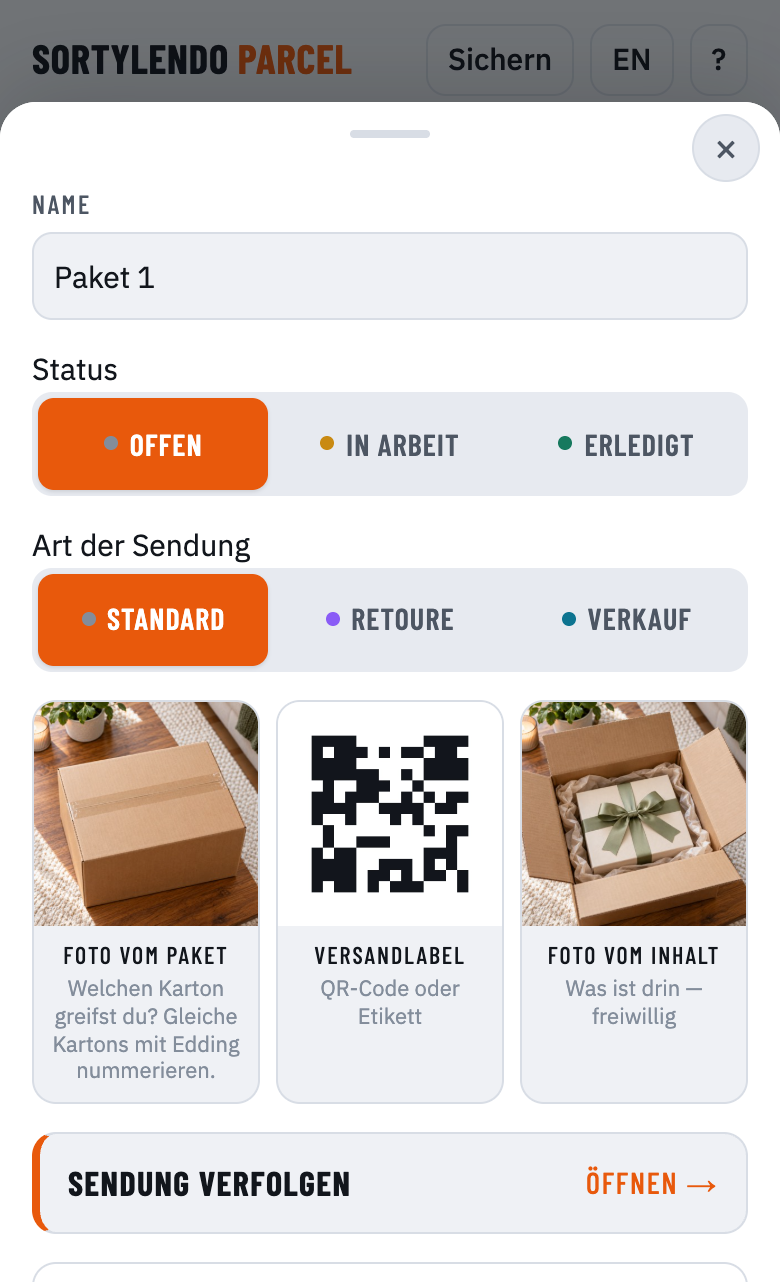
1 · Snap a photo of the box. Tap + New at the bottom right, then the first tile. The card gets a name automatically — Parcel 1, Parcel 2 and so on.
2 · Add the shipping label. If the code arrived by email, choose “Gallery / File” and pick the screenshot. If the label is already on the box, photograph it. Return and delivery notes work as PDFs too. After each image you can drag the frame so only the code is left.
3 · Tap the right one when you ship. At the parcel locker or the counter, your cards show the box photos. Tap the parcel in your hand, then the shipping label, and choose Show photo.
Tracking link
Optional, and entirely yours
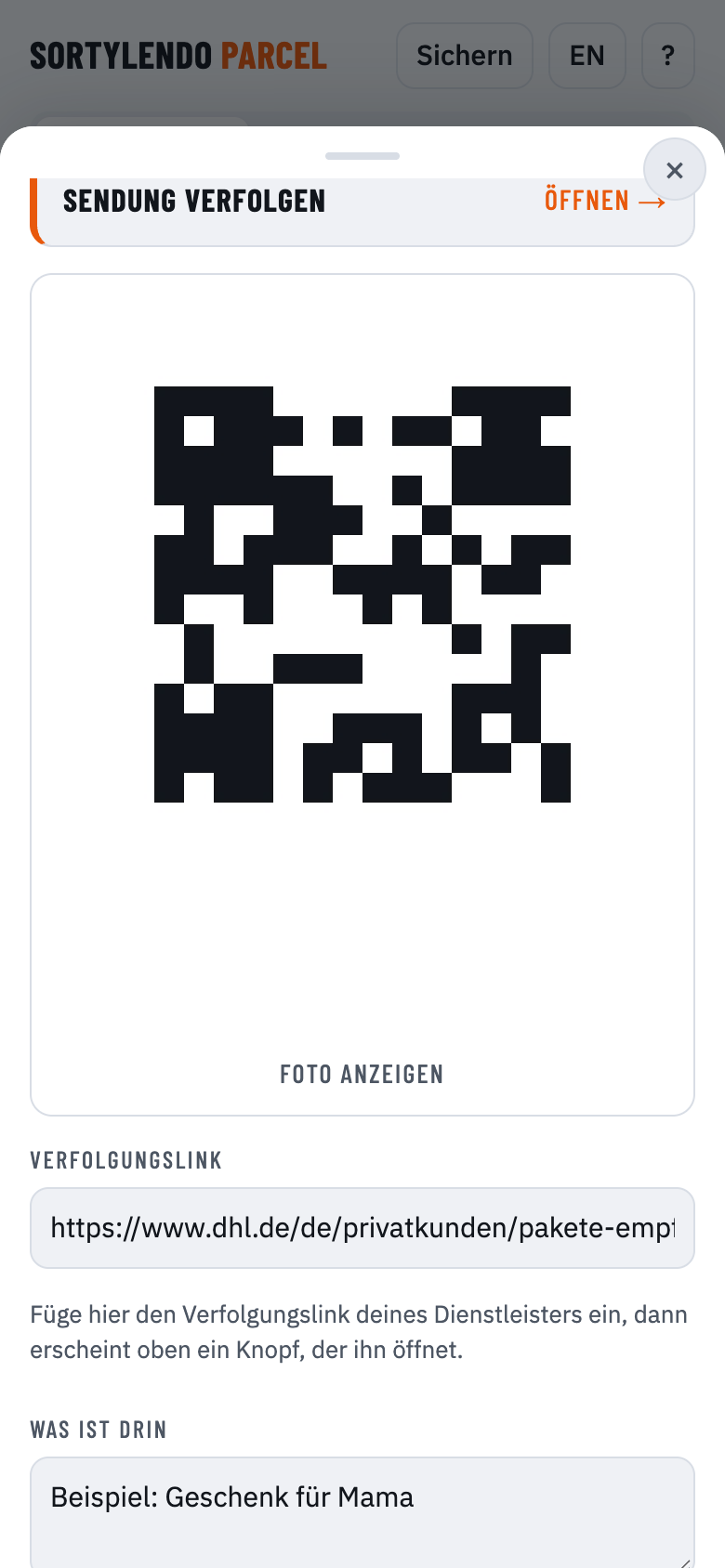
Paste your carrier’s tracking link — then a button to open it appears above. The app never builds an address itself.
No link, no button. The app reads nothing from your images and never builds an address for you — it only opens what you put in yourself.
Staying organised
Status, type and backups
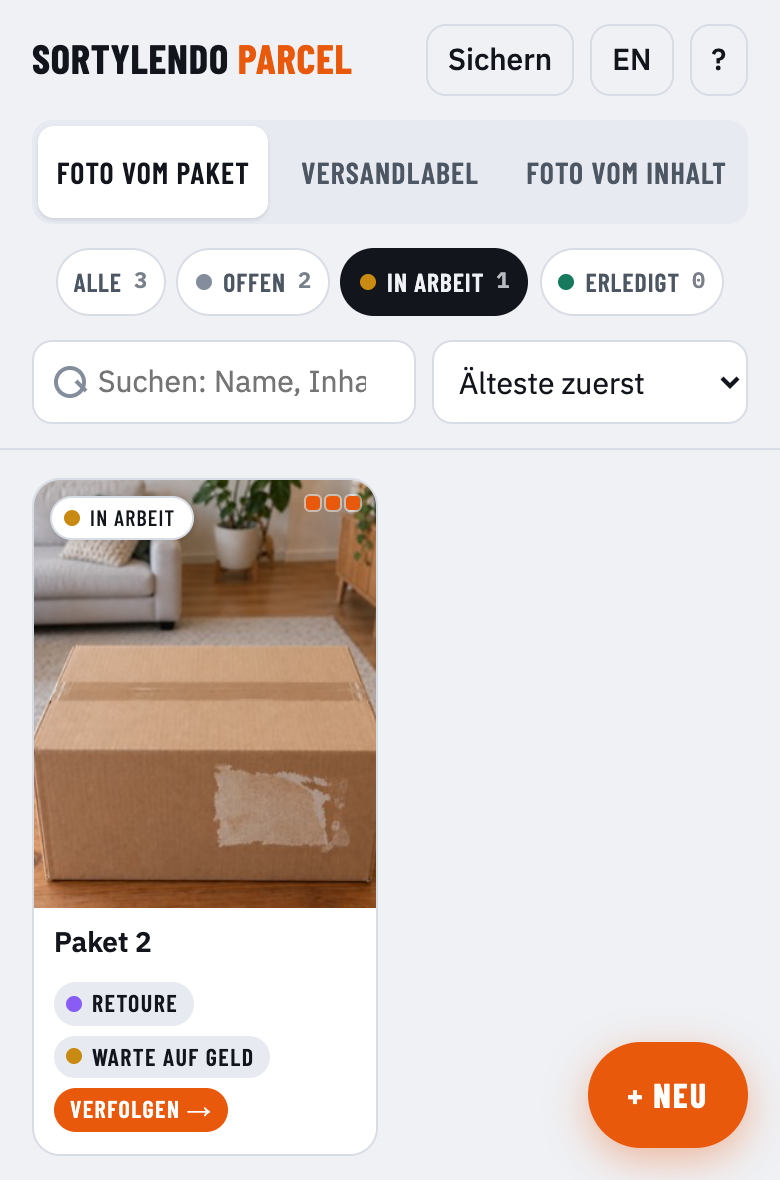
Every card has a status — Open, In progress, Done — that you set yourself. Filter by it at the top; when finished cards pile up, “Delete done cards” clears them out.
Under Type you note whether you’re sending something back or shipping something you sold. The card shows it at a glance.
Under Backup you’ll find the PDF overview to file away and the backup file — the only way to move your cards to another device. Individual cards go straight to WhatsApp or email via Share / Export.
Worth knowing
Where your data lives
Everything stays in your browser’s storage. Clear the site data and the cards go with it. Each address also has its own storage — what you create in the browser won’t automatically appear in the installed app.
So make a backup file now and then, especially before clearing anything out.